

MCP Weather Server with STDIO transport
Build an MCP weather server with STDIO transport.
On this guide
In this section
Getting Started
In this guide, we will create a Micronaut application written in Java.
What you will need
To complete this guide, you will need the following:
-
Some time on your hands
-
A decent text editor or IDE (e.g. IntelliJ IDEA)
-
JDK 21 or greater installed with
JAVA_HOMEconfigured appropriately
Solution
We recommend that you follow the instructions in the next sections and create the application step by step. However, you can go right to the completed example.
-
Download and unzip the source
Create an application using the Micronaut Command Line Interface or with Micronaut Launch.
What will you build?
In this guide, we will create an MCP Server with Micronaut like the one described in the Build an MCP server tutorial on the Model Context Protocol website.
Dependency
Add the Micronaut MCP Server Java SDK dependency to your build file:
implementation("io.micronaut.mcp:micronaut-mcp-server-java-sdk")To use Micronaut JSON Schema generation capabilities, add the following dependencies:
annotationProcessor("io.micronaut.jsonschema:micronaut-json-schema-processor")
implementation("io.micronaut.jsonschema:micronaut-json-schema-annotations")
Configuration
JSON Schema Generation
An MCP Tool can define its input schema using JSON Schema.
Thanks to Micronaut JSON Schema, we can generate the JSON Schema at compile-time given a Java file.
Create two Java records to model the tools' inputs.
GetAlertInput will be the input schema of the getAlerts tool.
Point will be the input schema of the getWeatherForecastByLocation tool.
MCP Tool
The MCP Server exposes two tools: getWeatherForecastByLocation and getAlerts.
WeatherClient is a Micronaut bean that uses the Micronaut HTTP Client to consume
the https://api.weather.gov API. Please download the complete project to check the code.
STDOUT
When using the STDIO transport, it is important to ensure that the application does not write any logs or other output to stdout, as this would interfere with the MCP protocol communication.
Disable the Micronaut banner
imports
package example.micronaut;

import io.micronaut.runtime.Micronaut;
public class Application {
public static void main(String[] args) {
Micronaut.build(args)
.banner(false)
.start();
}
}Configure Logback not to log to stdout. For example, you can configure Logback to log to a file or to stderr (see <target>System.err</target> in the configuration file below):
<configuration>

    <appender name="STDERR" class="ch.qos.logback.core.ConsoleAppender">
        <target>System.err</target>
        <!-- encoders are assigned the type
             ch.qos.logback.classic.encoder.PatternLayoutEncoder by default -->
        <encoder>
            <pattern>%cyan(%d{HH:mm:ss.SSS}) %gray([%thread]) %highlight(%-5level) %magenta(%logger{36}) - %msg%n</pattern>
        </encoder>
    </appender>

    <root level="info">
        <appender-ref ref="STDERR" />
    </root>
</configuration>
Executable JAR
Create an executable jar including all dependencies:
./gradlew shadowJarMCP Inspector
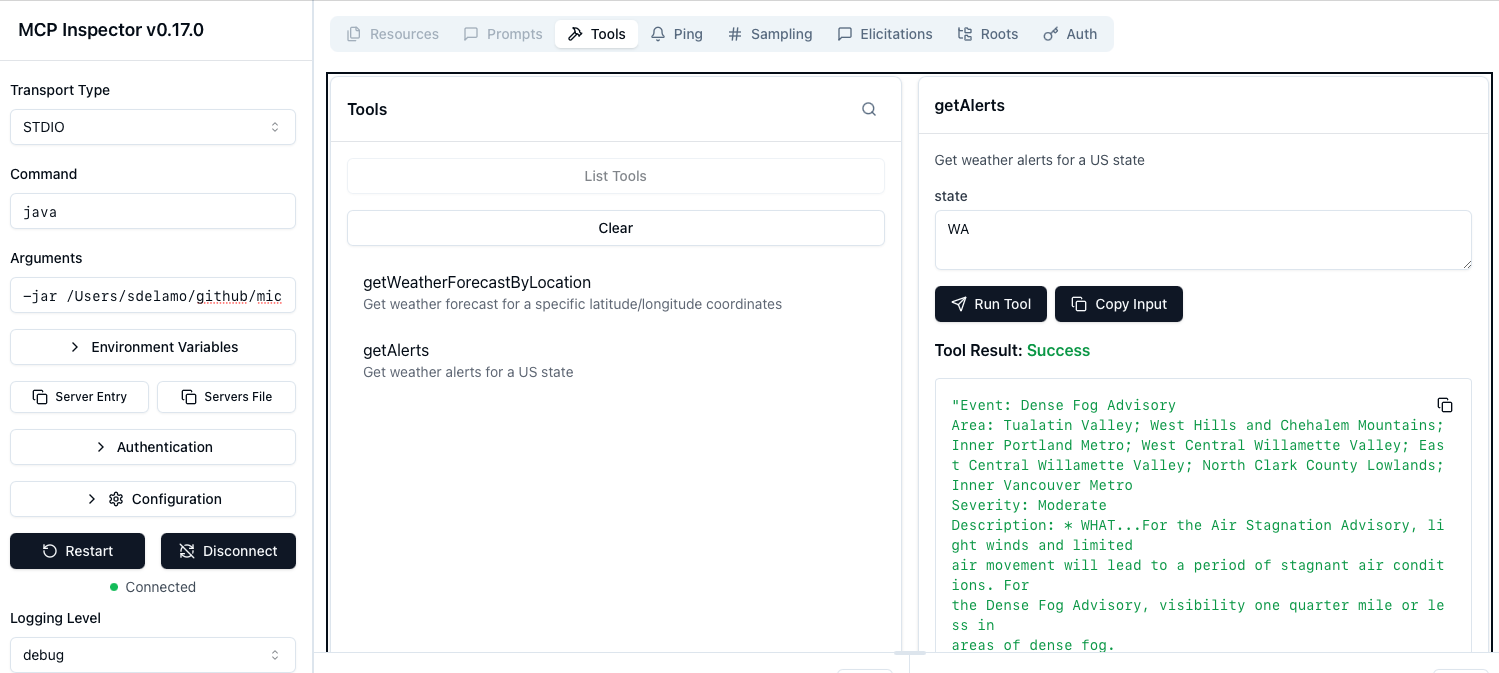
To test the MCP Server, run the MCP inspector.
Select STDIO as Transport type.
Enter java as Command.
Enter -jar PATH_TO_YOUR_PROJECT/build/libs/default-0.1-all.jar as Arguments.
Click connect. You will be able to list tools and invoke the getWeatherForecastByLocation tool.
|
Note
|
The https://api.weather.gov API works only for US locations. |
You will also be able to invoke the getAlerts tool.
Next Steps
Explore more features with Micronaut Guides.
Check the Micronaut MCP documentation and the Micronaut MCP Guides
License
|
Note
|
All guides are released with an Apache License 2.0 for the code and a Creative Commons Attribution 4.0 license for the writing and media (images). |