

Using EclipseStore persistence with Micronaut
Learn how to use EclipseStore as a high-performance persistence layer.
On this guide
In this section
Getting Started
In this guide, we will create a Micronaut application written in Groovy.
You will use EclipseStore for persistence.
What you will need
To complete this guide, you will need the following:
-
Some time on your hands
-
A decent text editor or IDE (e.g. IntelliJ IDEA)
-
JDK 21 or greater installed with
JAVA_HOMEconfigured appropriately
Solution
We recommend that you follow the instructions in the next sections and create the application step by step. However, you can go right to the completed example.
-
Download and unzip the source
Writing the Application
Create an application using the Micronaut Command Line Interface or with Micronaut Launch.
mn create-app example.micronaut.micronautguide \
    --features=properties,eclipsestore,serialization-jackson,validation \
    --build=gradle \
    --lang=groovy \
--test=spock|
Note
|
If you don’t specify the --build argument, Gradle with the Kotlin DSL is used as the build tool. If you don’t specify the --lang argument, Java is used as the language.If you don’t specify the --test argument, JUnit is used for Java and Kotlin, and Spock is used for Groovy.
|
The previous command creates a Micronaut application with the default package example.micronaut in a directory named micronautguide.
If you use Micronaut Launch, select Micronaut Application as application type and add properties, eclipsestore, serialization-jackson, and validation features.
|
Note
|
If you have an existing Micronaut application and want to add the functionality described here, you can view the dependency and configuration changes from the specified features, and apply those changes to your application. |
Dependencies
The eclipsestore feature adds the following dependencies:
compileOnly("io.micronaut.eclipsestore:micronaut-eclipsestore-processor")
compileOnly("io.micronaut.eclipsestore:micronaut-eclipsestore-processor")
implementation("io.micronaut.eclipsestore:micronaut-eclipsestore")
Domain object
Create a Fruit class which will be used as the domain object.
Root Object
Create a FruitContainer POGO which will be used as the root of our object graph.
imports
package example.micronaut

import io.micronaut.core.annotation.NonNull

import java.util.concurrent.ConcurrentHashMap
class FruitContainer {
@NonNull
final Map<String, Fruit> fruits = new ConcurrentHashMap<>()
}Configuration
Add the following snippet to application.properties to configure EclipseStore.
eclipsestore.storage.main.root-class=example.micronaut.FruitContainer
eclipsestore.storage.main.storage-directory=build/fruit-storage
Command object
And a FruitCommand class which will be used as the command object over HTTP.
Repository
Create a repository interface to encapsulate the CRUD actions for Fruit.
Error handling
In the event an attempt is made to create a duplicate fruit, we will catch the exception with a custom class.
imports
package example.micronautclass FruitDuplicateException extends RuntimeException{
FruitDuplicateException(String name) {
super("Fruit '" + name + "' already exists.")
}
}A custom ExceptionHandler handles this exception and returns a 400 error with a sensible message.
Repository implementation
Implement the FruitRepository interface.
When an object in your graph changes, you need to persist the object that contains the change.
This can be achieved through the StoreParams and StoreReturn annotations.
Controller
Create FruitController:
Test
Create a test that verifies the validation of the FruitCommand POJO when we invoke the FruitRepository interface:
Create a test that verifies the validation of the FruitCommand POJO when we create a new entity via POST:
We will use temporary directories to persist our data under test.
To facilitate this, create a base test class that handles the creation of a temporary folder, and configuring the application.
imports
package example.micronaut

import io.micronaut.test.support.TestPropertyProvider
import spock.lang.Specification
import java.nio.file.Files
import java.nio.file.Path
import io.micronaut.core.annotation.NonNull
abstract class BaseSpec extends Specification implements TestPropertyProvider {
@Override
@NonNull
Map<String, String> getProperties() {
Path tempDir = Files.createTempDirectory('microstream')
["microstream.storage.main.storage-directory": tempDir.toString()]
}
}Create a test that validates FruitDuplicateExceptionHandler.
Add a Micronaut declarative HTTP Client to src/test to ease the testing of the application’s API.
imports
package example.micronaut

import io.micronaut.core.annotation.NonNull
import io.micronaut.http.HttpResponse
import io.micronaut.http.HttpStatus
import io.micronaut.http.annotation.Body
import io.micronaut.http.annotation.Delete
import io.micronaut.http.annotation.Get
import io.micronaut.http.annotation.PathVariable
import io.micronaut.http.annotation.Post
import io.micronaut.http.annotation.Put
import io.micronaut.http.client.annotation.Client

import jakarta.validation.Valid
import jakarta.validation.constraints.NotBlank
import jakarta.validation.constraints.NotNull@Client("/fruits")
interface FruitClient {
@Get
Iterable<Fruit> list()
@Get("/{name}")
Optional<Fruit> find(@NonNull @NotBlank @PathVariable String name)
@Post
HttpResponse<Fruit> create(@NonNull @NotNull @Valid @Body FruitCommand fruit)
@Put
Optional<Fruit> update(@NonNull @NotNull @Valid @Body FruitCommand fruit)
@NonNull
@Delete
HttpStatus delete(@NonNull @Valid @Body FruitCommand fruit)
}And finally, create a test that checks the controller works against EclipseStore correctly:
Testing the Application
To run the tests:
./gradlew testThen open build/reports/tests/test/index.html in a browser to see the results.
Running the Application
To run the application, use the ./gradlew run command, which starts the application on port 8080.
curl -i -d '{"name":"Pear"}' \
     -H "Content-Type: application/json" \
-X POST http://localhost:8080/fruitsHTTP/1.1 201 Created
date: Thu, 12 May 2022 13:45:56 GMT
Content-Type: application/json
content-length: 16
connection: keep-alive
{"name":"Pear"}curl -i localhost:8080/fruitsHTTP/1.1 200 OK
date: Thu, 12 May 2022 13:46:54 GMT
Content-Type: application/json
content-length: 70
connection: keep-alive
[{"name":"Pear"}]EclipseStore REST and GUI
During development, it is often useful to see the data being saved by EclipseStore. Micronaut EclipseStore integration helps you do that.
Add the following dependency:
developmentOnly("io.micronaut.eclipsestore:micronaut-eclipsestore-rest")The above dependency provides several JSON endpoints which expose the contents of the EclipseStore storage.
We need to enable Micronaut EclipseStore REST endpoints via configuration. For security, they are disabled by default. We will enable them only in the dev environment.
Dev default environment
Modify Application to use dev as a default environment.
imports
package example.micronaut

import io.micronaut.core.annotation.NonNull
import io.micronaut.context.ApplicationContextBuilder
import io.micronaut.context.ApplicationContextConfigurer
import io.micronaut.context.annotation.ContextConfigurer
import io.micronaut.runtime.Micronaut
import groovy.transform.CompileStatic
@CompileStatic
class Application {
@ContextConfigurer
static class Configurer implements ApplicationContextConfigurer {
@Override
public void configure(@NonNull ApplicationContextBuilder builder) {
builder.defaultEnvironments("dev")
}
}
static void main(String[] args) {
Micronaut.run(Application, args)
}
}Development Environment Configuration
Create src/main/resources/application-dev.properties.
The Micronaut framework applies this configuration file only for the dev environment.
eclipsestore.rest.enabled=trueEclipseStore Client GUI
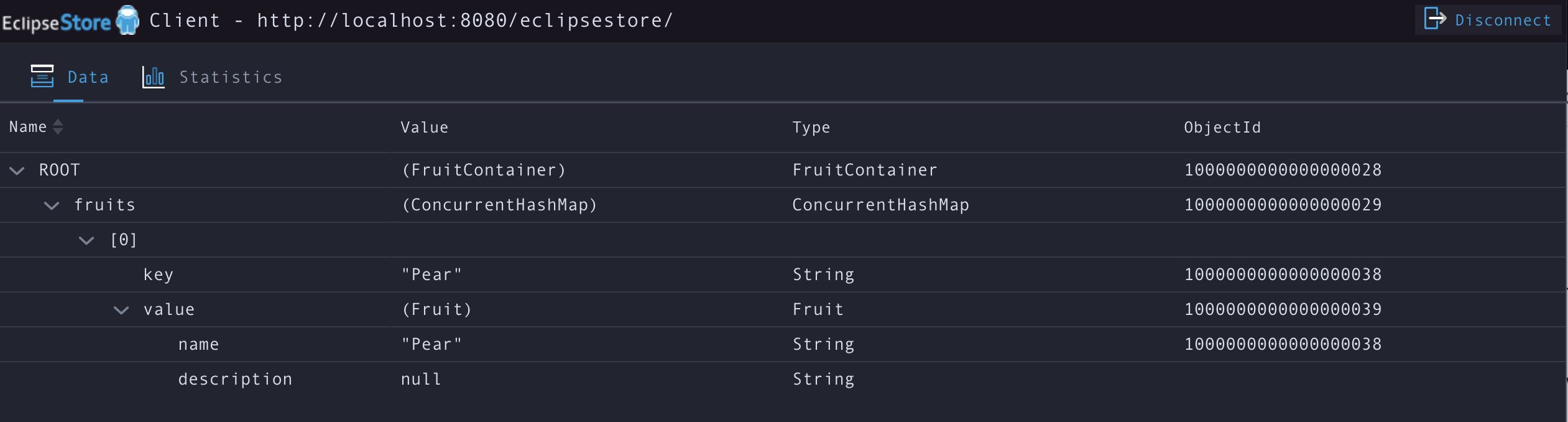
Run the client and connect to the EclipseStore REST API exposed by the Micronaut application:

You can visualize the data you saved via curl.
Next Steps
Explore more features with Micronaut Guides.
Read more about:
License
|
Note
|
All guides are released with an Apache License 2.0 for the code and a Creative Commons Attribution 4.0 license for the writing and media (images). |