

Secure a Micronaut application with LinkedIn
Learn how to create a Micronaut application and authenticate with LinkedIn.
On this guide
In this section
Getting Started
In this guide, we will create a Micronaut application written in Java.
What you will need
To complete this guide, you will need the following:
-
Some time on your hands
-
A decent text editor or IDE (e.g. IntelliJ IDEA)
-
JDK 21 or greater installed with
JAVA_HOMEconfigured appropriately
Solution
We recommend that you follow the instructions in the next sections and create the application step by step. However, you can go right to the completed example.
-
Download and unzip the source
OAuth 2.0
To provide Sign in with LinkedIn with Authorization Code Flow, you need to visit linkedin.com/developers/ and:
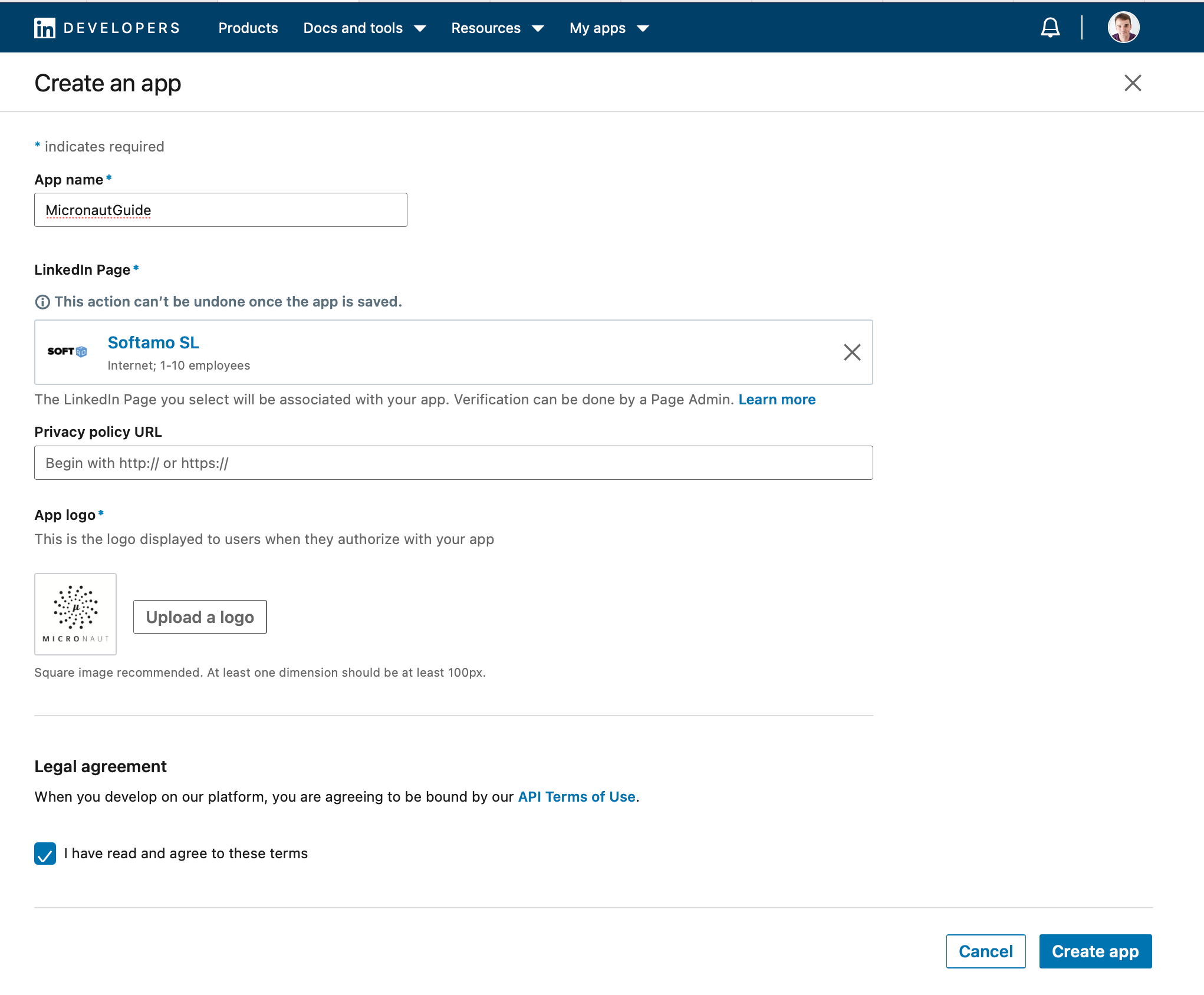
Create a LinkedIn App
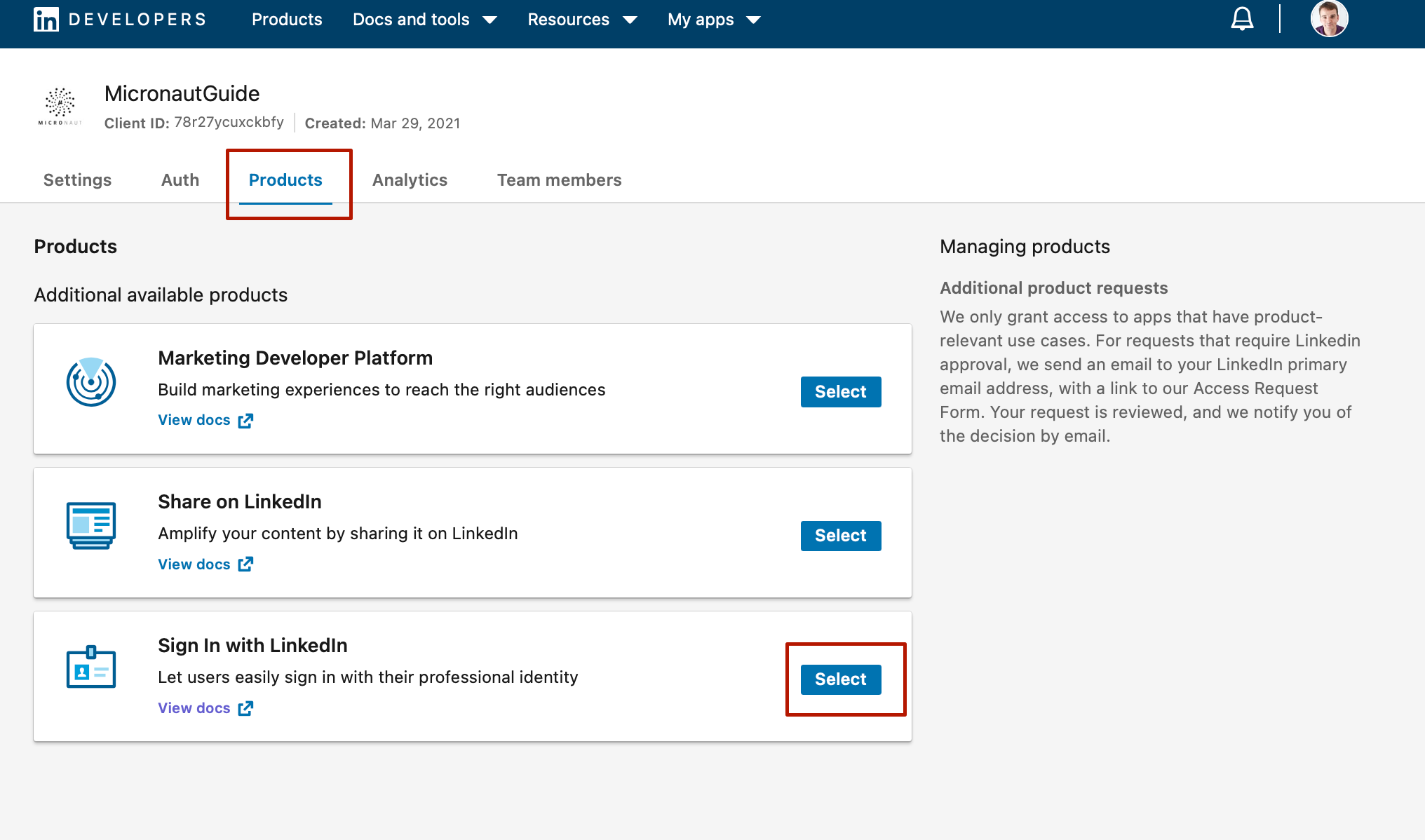
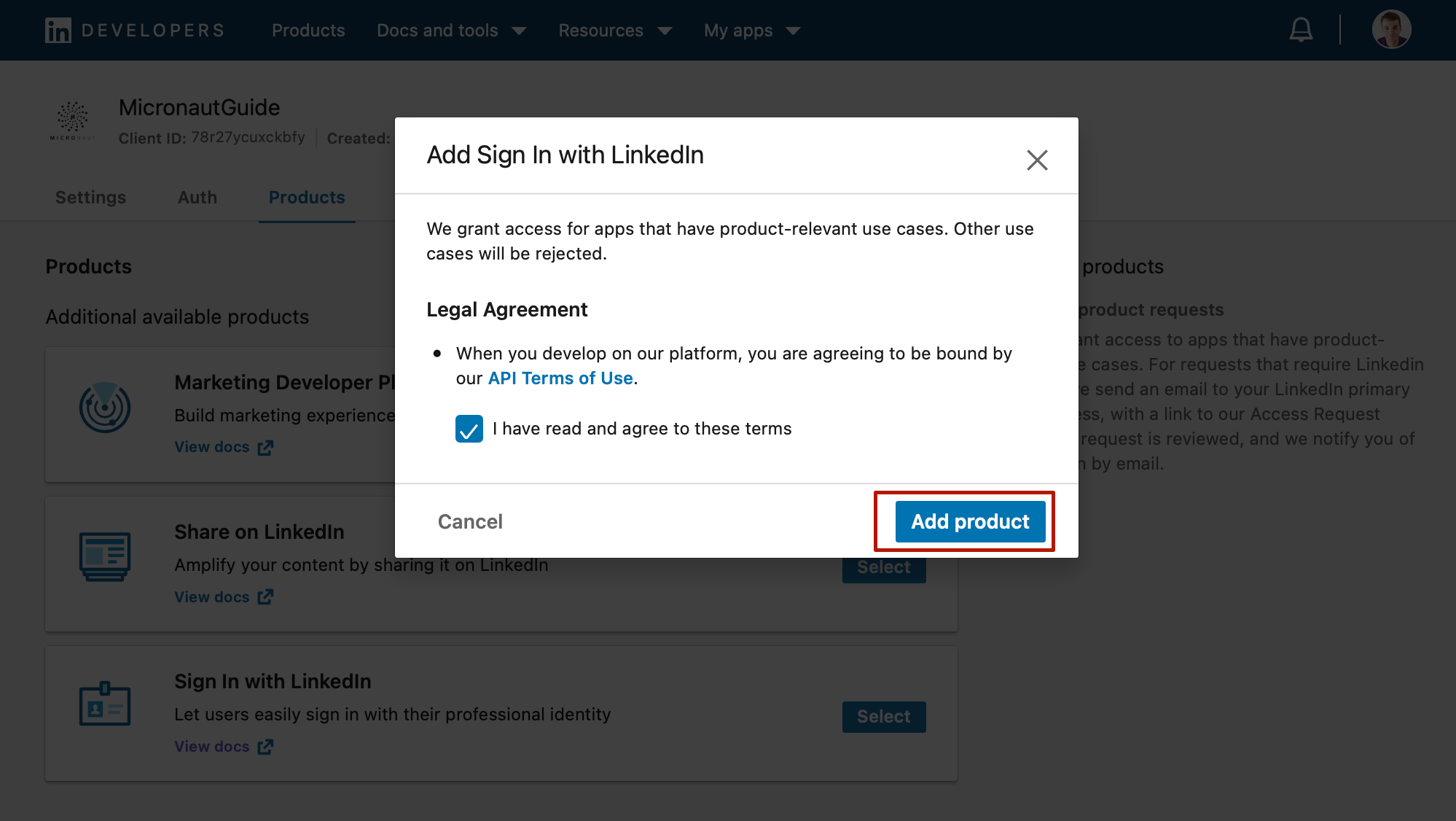
Add Sign in with LinkedIn Product
Configure Authorized Redirect URL
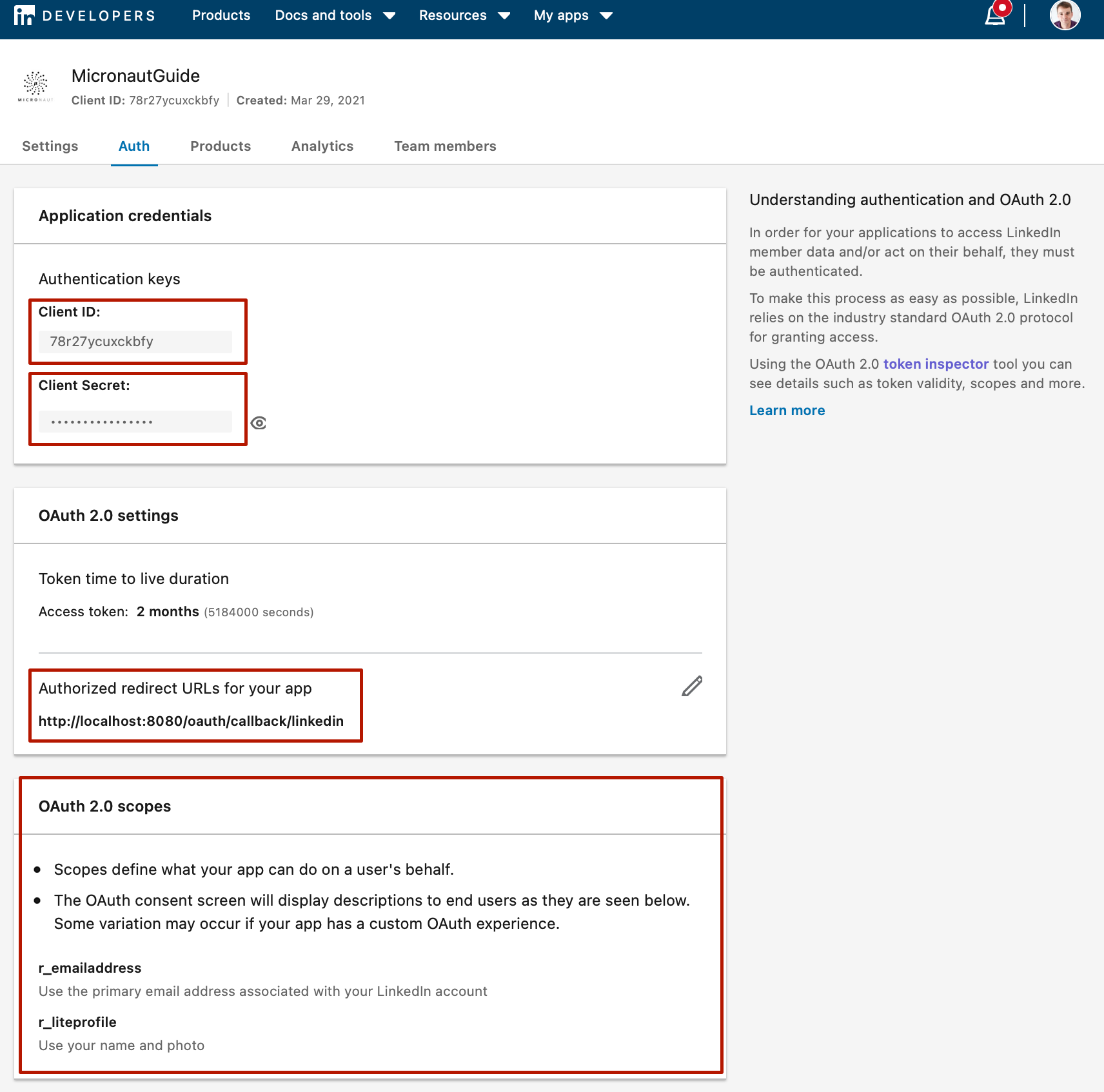
Go to the Auth tab.
-
Save your client ID and client secret. You will need them to configure your Micronaut application.
-
Register
http://localhost:8080/oauth/callback/linkedin. By creating a client namedlinkedinin the Micronaut application, the route/oauth/callback/linkedinis registered. -
After you add
Add Sign in with LinkedIn, the scopesr_liteprofileandr_emailaddresswill appear. We will configure the Micronaut application to request ther_liteprofilescope.
Writing the Application
Create an application using the Micronaut Command Line Interface or with Micronaut Launch.
mn create-app example.micronaut.micronautguide \
    --features=security-oauth2,security-jwt,views-thymeleaf,reactor,serialization-jackson,http-client,graalvm \
    --build=maven \
    --lang=java \
--test=junit|
Note
|
If you don’t specify the --build argument, Gradle with the Kotlin DSL is used as the build tool. If you don’t specify the --lang argument, Java is used as the language.If you don’t specify the --test argument, JUnit is used for Java and Kotlin, and Spock is used for Groovy.
|
The previous command creates a Micronaut application with the default package example.micronaut in a directory named micronautguide.
If you use Micronaut Launch, select Micronaut Application as application type and add security-oauth2, security-jwt, views-thymeleaf, reactor, serialization-jackson, http-client, and graalvm features.
|
Note
|
If you have an existing Micronaut application and want to add the functionality described here, you can view the dependency and configuration changes from the specified features, and apply those changes to your application. |
Views
Although the Micronaut framework is primarily designed around message encoding / decoding, there are occasions where it is convenient to render a view on the server side.
We’ll use the Thymeleaf Java template engine to render views.
Home
Create a controller to handle the requests to /. You will display the email of the authenticated person if any. Annotate the controller endpoint with @View since we will use a Thymeleaf template.
Create a Thymeleaf template:
<!DOCTYPE html>
<html xmlns:th="http://www.thymeleaf.org">
<head>
    <title>Home</title>
</head>
<body>
<h1>Micronaut - LinkedIn example</h1>

<h2 th:if="${security}">username: <span th:text="${security.name}"></span></h2>
<h2 th:unless="${security}">username: Anonymous</h2>

<nav>
    <ul>
        <li th:unless="${security}"><a href="/oauth/login/linkedin">Enter</a></li>
        <li th:if="${security}"><a href="/logout">Logout</a></li>
    </ul>
</nav>
</body>
</html>
Also, note that we return an empty model in the controller. However, we are accessing security in the Thymeleaf template.
-
The SecurityViewModelProcessor injects into the model a
securitymap with the authenticated user. See User in a view documentation.
OAuth 2.0 authorization code grant flow
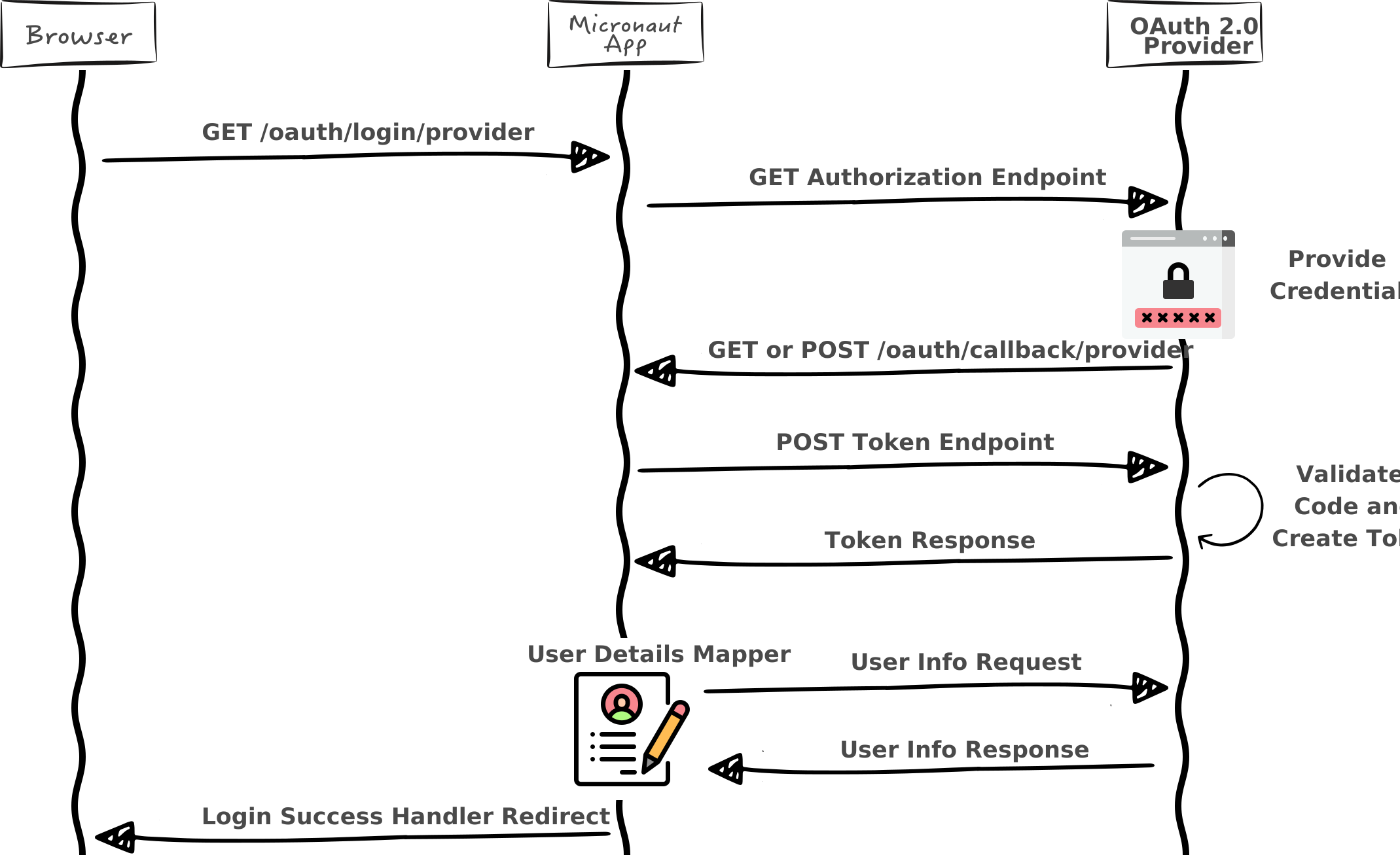
Here is a high level diagram of how the authorization code grant flow works with an OAuth 2.0 provider such as LinkedIn.
OAuth 2.0 Configuration
Add the following OAuth 2.0 configuration:
The previous configuration uses several placeholders. You will need to set up the OAUTH_CLIENT_ID and OAUTH_CLIENT_SECRET environment variables.
export OAUTH_CLIENT_ID=XXXXXXXXXX
export OAUTH_CLIENT_SECRET=YYYYYYYYYY
OAuth 2.0 Details Mapper
We need an HTTP Client to retrieve the user info. Create a POJO to represent a LinkedIn user:
imports
package example.micronaut;

import io.micronaut.core.annotation.NonNull;
import io.micronaut.serde.annotation.Serdeable;
import jakarta.validation.constraints.NotBlank;@Serdeable
public class LinkedInMe {
@NonNull
@NotBlank
private final String id;
@NonNull
@NotBlank
private final String localizedFirstName;
@NonNull
@NotBlank
private final String localizedLastName;
public LinkedInMe(@NonNull String id,
@NonNull String localizedFirstName,
@NonNull String localizedLastName) {
this.id = id;
this.localizedFirstName = localizedFirstName;
this.localizedLastName = localizedLastName;
}
@NonNull
public String getId() {
return id;
}
@NonNull
public String getLocalizedFirstName() {
return localizedFirstName;
}
@NonNull
public String getLocalizedLastName() {
return localizedLastName;
}
}Then, create a Micronaut Declarative HTTP Client to consume LinkedIn Profile endpoint
Specify the URL for the linkedin service.
micronaut.http.services.linkedin.url=https://api.linkedin.comCreate an implementation of OauthAuthenticationMapper. The implementation must be qualified by a name that matches the name present in the client configuration. The value specified in the client configuration is linkedin.
Running the Application
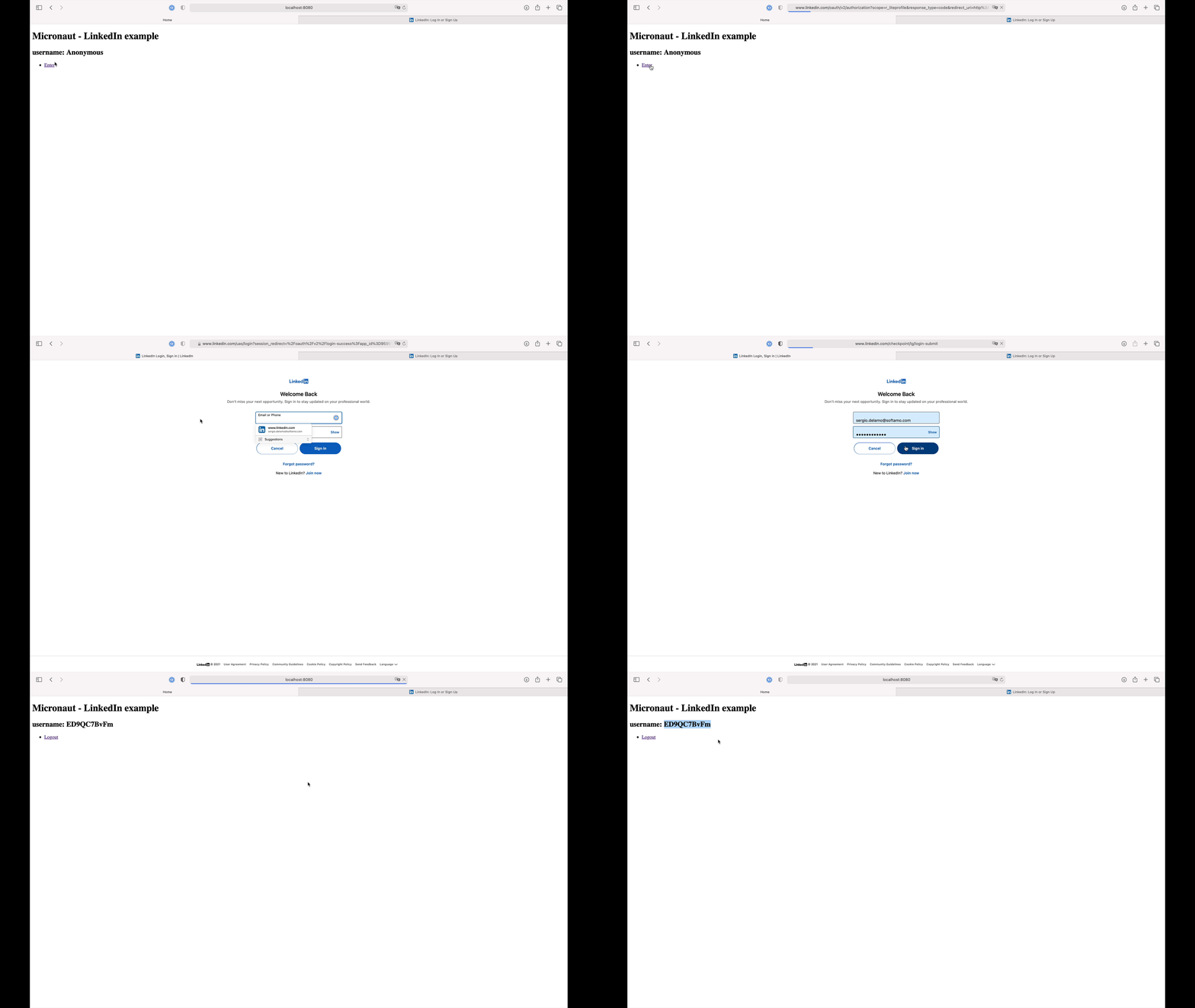
To run the application, use the ./mvnw mn:run command, which starts the application on port 8080.
Generate a Micronaut Application Native Executable with GraalVM
We will use GraalVM, an advanced JDK with ahead-of-time Native Image compilation, to generate a native executable of this Micronaut application.
Compiling Micronaut applications ahead of time with GraalVM significantly improves startup time and reduces the memory footprint of JVM-based applications.
|
Note
|
Only Java and Kotlin projects support using GraalVM’s native-image tool. Groovy relies heavily on reflection, which is only partially supported by GraalVM.
|
GraalVM Installation
sdk install java 25.4.4+1-graalFor installation on Windows, or for a manual installation on Linux or Mac, see the GraalVM Getting Started documentation.
The previous command installs Oracle GraalVM, which is free to use in production and free to redistribute, at no cost, under the GraalVM Free Terms and Conditions.
Alternatively, you can use the GraalVM Community Edition:
sdk install java 25.4.4.1+1-graalceNative Executable Generation
To generate a native executable using Maven, run:
./mvnw package -Dpackaging=native-imageThe native executable is created in the target directory and can be run with target/micronautguide.
It is possible to customize the name of the native executable or pass additional build arguments using the Maven plugin for GraalVM Native Image building. Declare the plugin as follows:
Visit localhost:8080 and authenticate with LinkedIn.
Next Steps
Read Micronaut OAuth 2.0 documentation to learn more.
License
|
Note
|
All guides are released with an Apache License 2.0 for the code and a Creative Commons Attribution 4.0 license for the writing and media (images). |